
SuPAR 2026
SuPAR 2026 introduces SuPAR Insight, a shared home for your team's projects and inspection results, and brings Assisted Part Inspection, follow-up inspections and custom POI fields to the iPad.
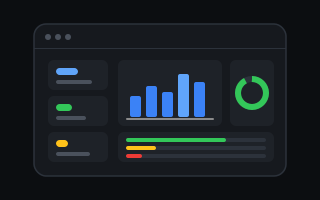 SuPAR Insight
New: projects, checklists and results for the whole team, in one place.
SuPAR Insight
New: projects, checklists and results for the whole team, in one place.
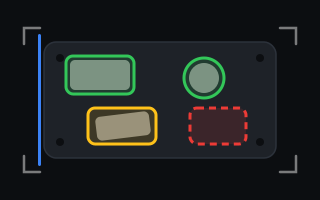 Assisted Part Inspection
Every marked part compared with the camera image, live.
Assisted Part Inspection
Every marked part compared with the camera image, live.
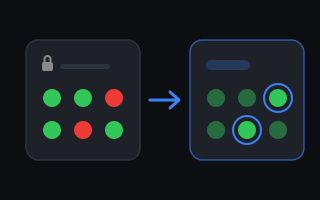 Follow-up inspections
Complete an inspection, then follow up after the rework.
Follow-up inspections
Complete an inspection, then follow up after the rework.
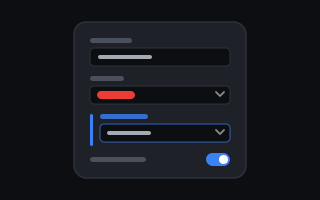 Custom POI fields
Your own questions at every checkpoint, even offline.
Custom POI fields
Your own questions at every checkpoint, even offline.
Also new: A new product tree Bands along seams and beads A new project browser Edit many POIs at once More in each app
SuPAR Insight
Your team's shared home for SuPAR projects and inspection results.
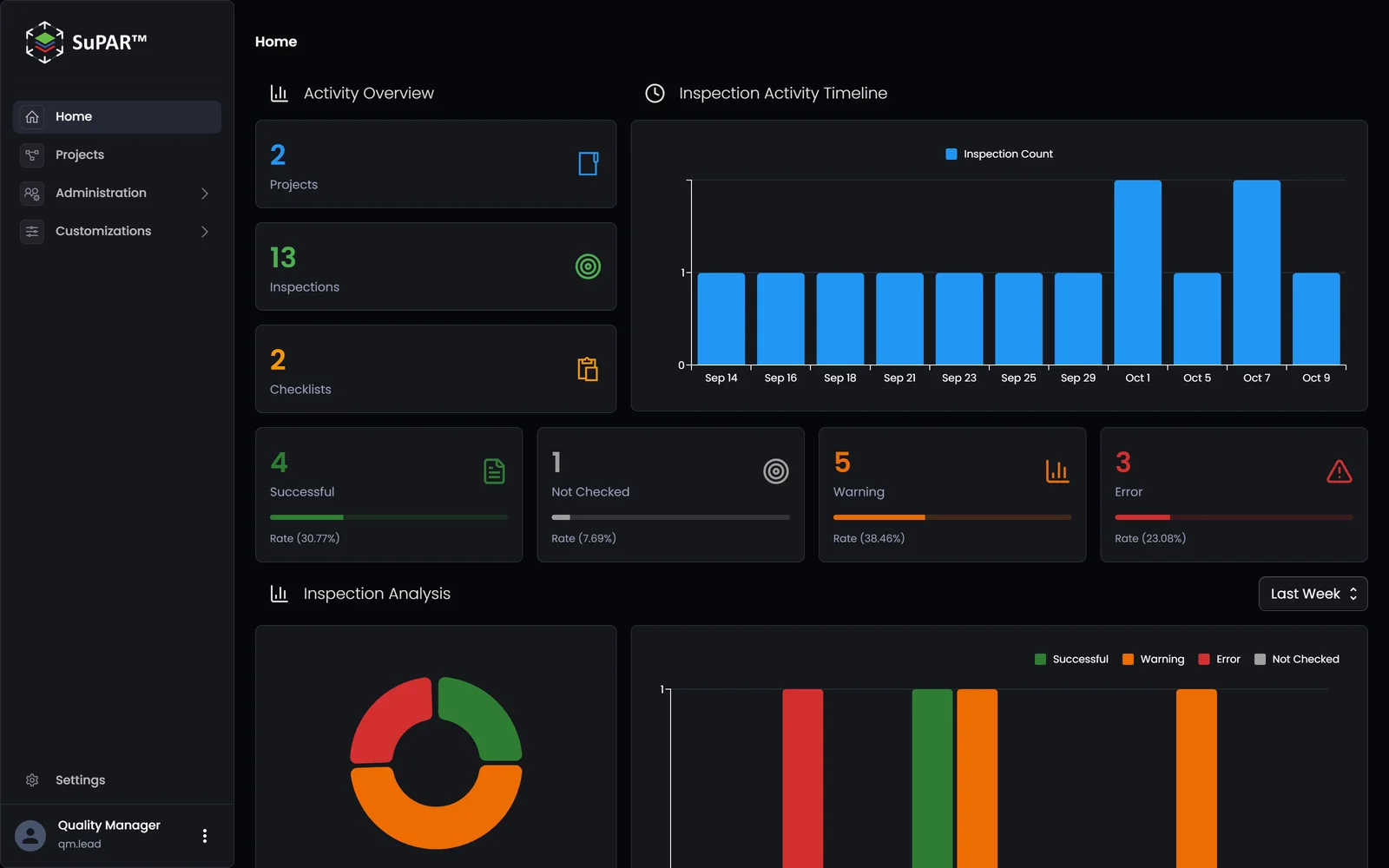
SuPAR Insight is a new web app for the whole quality team. Instead of passing project files and reports between PCs and iPads, everything lives in one place: Composer uploads projects to team folders, inspectors open them on the iPad, and every completed inspection arrives in Insight with its results and photos, ready to review in the browser.
One place for every project and inspection
SuPAR Insight keeps projects, checklists and inspections in team folders, and keeps every iPad up to date.
- 1Upload Build projects and checklists in SuPAR Composer and upload them to a team folder.
- 2Download Inspectors open the projects on their iPads, which download them from SuPAR Insight.
- 3Update Upload a new version from Composer, and each iPad gets it the next time the project is opened.
- 4Collect Completed inspections are stored with their project. One completed offline waits on the iPad until it is back online.
Put every inspection to work
Everything an inspector records is ready to review in the browser, from the big picture down to a single checkpoint.
- 1Collect Completed inspections arrive from every iPad. One completed offline follows when its iPad is back online.
- 2Dashboard Inspection counts, result rates and trends, down to how each checkpoint did over time.
- 33D viewer Open an inspection on the model and click a checkpoint for its result, comment, photos and custom field answers.
- 4PDF report Download a PDF report of any inspection to share it.
-
Every project in one place
Team folders hold your projects and checklists. The iPad opens them from there and downloads a newer version when there is one.
-
Results arrive on their own
A completed inspection is sent to Insight automatically. If it was completed offline, it goes at the next sign-in.
-
See how inspections go
A dashboard with inspection counts, result rates and trends, and every inspection with its photos and a PDF report.
-
Review on the model
Open any inspection in the browser and see every checkpoint on the 3D model, colored by its result.
-
Teams and roles
Managers, Inspectors and Analysts see and do what their role allows. Share folders with other teams as View, Inspect or Full.
-
Ready for the shop floor
Downloaded projects open and can be inspected on the iPad without a connection.
Assisted Part Inspection
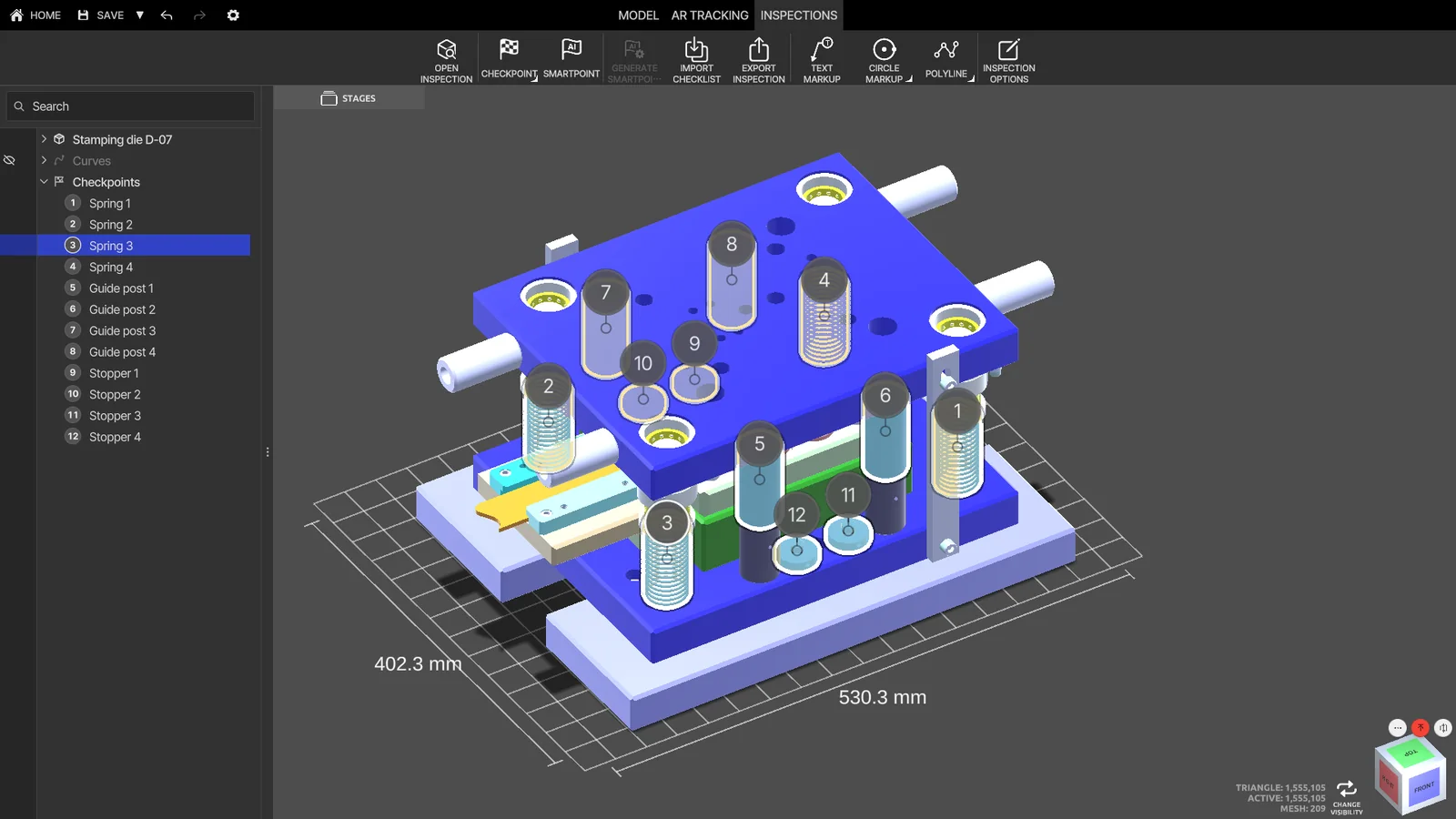
Is every bracket, clip and spring where it should be? Pick the parts in Composer and add them as part inspection checkpoints. On the iPad, SuPAR compares each marked part with the camera image five times a second: green where it is in place, red where it is missing or moved. The colors guide the inspector; the decision stays theirs.
- 1Mark Select the parts in Composer and add them as part inspection checkpoints.
- 2Check live On the iPad, SuPAR compares each marked part with the camera image five times a second: green in place, yellow not sure, red missing or moved.
- 3Decide The colors show where to look. The inspector decides every checkpoint; nothing is set automatically.
Complete, then follow up
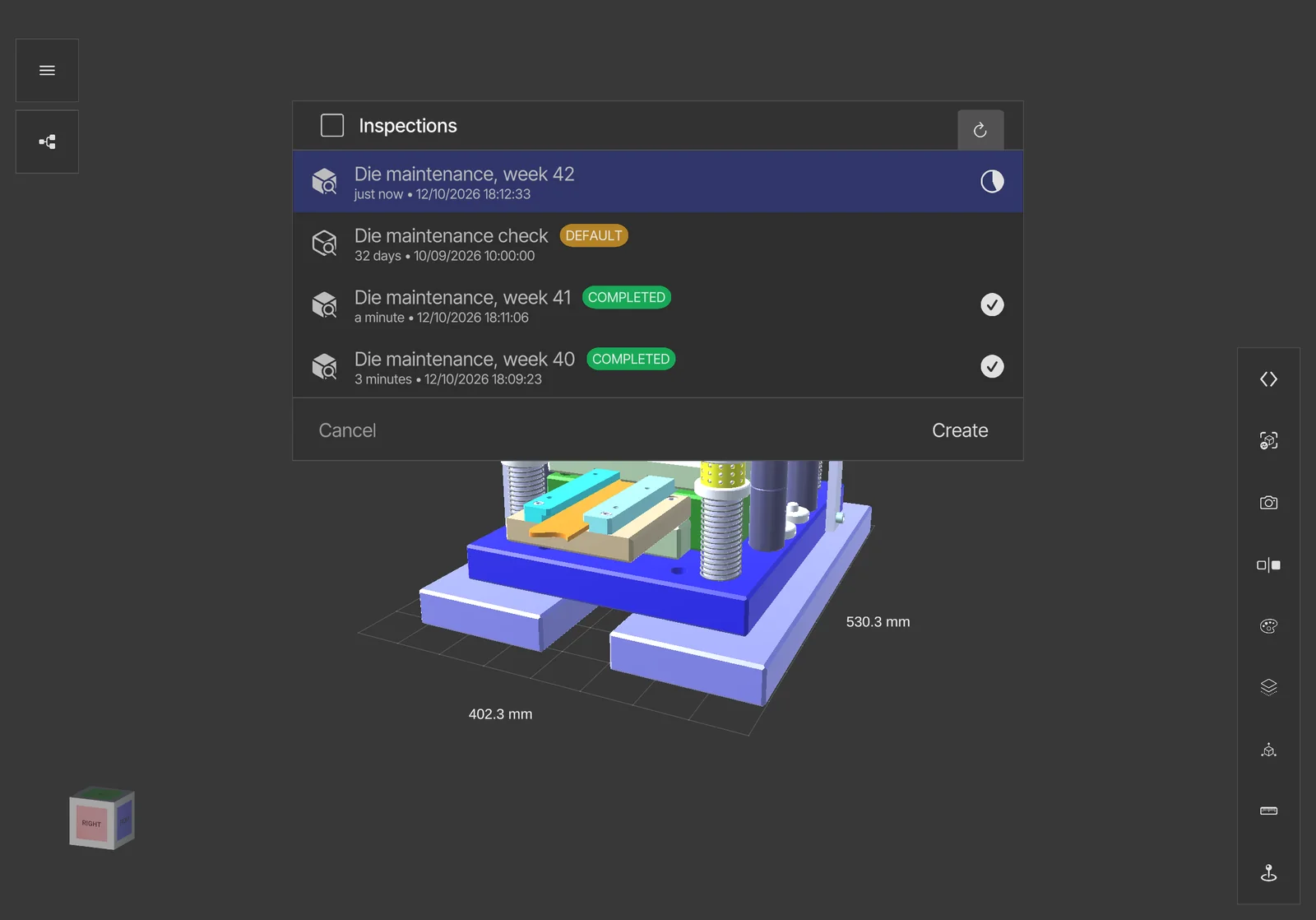
Complete an inspection on the iPad to lock its results. When the rework is done, start a follow-up from the completed inspection: every finding carries over, so the inspector picks up exactly where the rework was needed.
- 1Inspect Decide every checkpoint on the iPad, and save as often as you like.
- 2Complete Completing locks the inspection with its completion time. Projects from SuPAR Insight send it there, once.
- 3Follow up After the rework, start a follow-up: every finding carries over, so the inspector rechecks what was rejected.
- 4Complete again The follow-up is completed the same way and records the round it follows.
Custom POI fields
Design your own POI types in SuPAR Insight: text, numbers, barcodes, choices, toggles and ranges, required fields, and questions that appear based on earlier answers, with labels in your languages. Pick a type for each checkpoint in Composer; inspectors answer on the iPad, even offline, and the answers show up in the reports and in Insight.
- POI type
- Spot weld
- Weld ID
- Text, required
- SW-1042
- Result
- Accept or Reject
- Accept
- Reject
- Defect type
- Only when Result is Reject
- Burn-through
- Rework needed
- On or off
- Yes
- 1Design Design a POI type in SuPAR Insight. Here, Spot weld asks for the weld ID and a result, and for a defect type only when the result is Reject.
- 2Assign Pick the type for the checkpoint in Composer.
- 3Answer On the iPad the questions appear right at the checkpoint, even offline. Choosing Reject brings up the defect type.
- 4Review The answers travel with the completed inspection, into SuPAR Insight and into the reports.
Built for everyday work
A new product tree
Drag and drop parts, assemblies and checkpoints, show, hide and lock parts from columns, rename in place, group and ungroup, and step through search matches. It stays responsive on assemblies with 10,000 or more parts.
Bands along seams and beads
Some features are lines, not points. Composer draws bands of adjustable width along the CAD surface, where a sealant bead or a weld seam belongs, and SuPAR shows them on the model.
A new project browser
Folders, grid and list views, search and sorting, and your team's SuPAR Insight projects one tab away.
Edit many POIs at once
Select several POIs and change the fields they share in one step, or delete them together. One undo reverts the whole change.
More in each app
SuPAR
- Auto save, on by default: after an unexpected exit, SuPAR offers to restore your work.
- A default checklist starts a new inspection as soon as the project opens.
- Reports show when an inspection started and ended, and how long it took.
- An optional photo with every checkpoint decision.
- Comments and titles you entered before are suggested while you type.
- Tracking starts when you tap Start Tracking or choose a reference view.
- Links in checkpoint descriptions open directly.
- Color Blind Mode also covers the part inspection colors.
SuPAR Composer
- Multi POI creation in a docked panel that also works on markups.
- Design and Design Ultra import quality, for smooth reflective surfaces.
- Imported models use less memory, and merging can combine parts or simplify each one.
- Edge extraction presets: Low, Medium and High.
- Mouse navigation that matches common CAD software.
- Smartpoint groups, and a default AI model target for Smartpoint generation.
- Rich text descriptions with clickable links.
- Newer CAD versions, among them Inventor 2027, Creo 13.4 and NX 2606.
SuPAR Insight
- A dashboard with inspection counts, result rates and trends.
- Team folders with upload, bulk upload, move, share and search.
- Every inspection with its results, photos and a PDF report.
- A 3D viewer with checkpoints colored by result, measurement and a view cube.
- The POI type designer, with Try it to test a form before it goes out.
- Default SuPAR app settings per organization or team.
- Team members, roles and folder shares in one place.